1. Download and Configure Tomcat
1. Download
Download from the official website
2. Configure
For Windows users, the .exe installer is the easiest option, but it also requires a Java environment to be installed first.
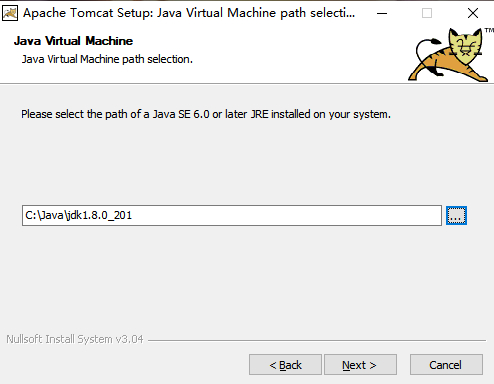
Just go through the installer with the default settings. At one step it will ask you to select your JDK path.
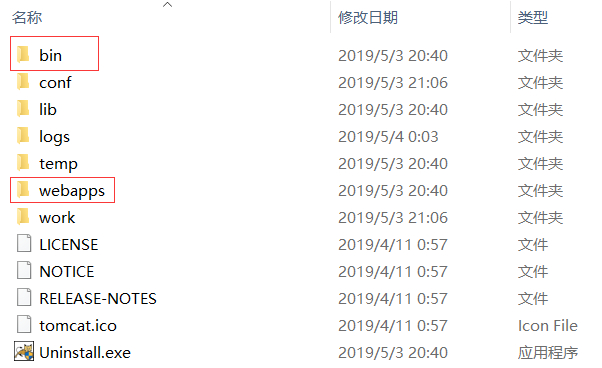
After installation, the directory should look roughly like this:
3. Use It
The bin directory is used to start Tomcat, and webapps is where we place our Servlet application.
Open bin\Tomcat7.exe, then visit http://localhost:8080 in your browser.
If the Tomcat landing page appears, the installation was successful.
2. Write the Servlet Program
1. Write the Java Code
|
|
Place the cursor on the error, press Alt+Enter, and choose Add Java EE 6 ..., then wait for it to download.

|
|
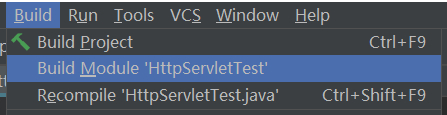
Then compile it:
2. Put the .class File into the Tomcat Directory
Find the generated .class file under the out directory and copy it to webapps\ROOT\WEB-INF\classes.
Note: if your class is inside a package, you need to copy the full directory structure as shown below.
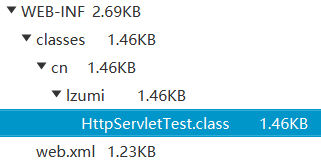
Edit the file webapps\ROOT\WEB-INF\web.xml and change the metadata-complete attribute to false:
|
|
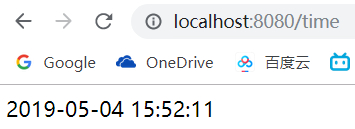
Open bin\Tomcat7.exe again, then visit http://localhost:8080/time in your browser.
You should now see the current time returned by the servlet.