Solution to Antigravity IDE Remote Development Server Crashed

How to fix the "Antigravity server crashed unexpectedly. Please restart to fully restore AI features." error when using Antigravity IDE for remote development on older CPU servers.

Background

Hardware Environment:

  • Local Machine: Windows 11
  • Remote Development Server: J1900 (Snail NAS), Debian 13

I have been using Claude Code and Codex, and today I wanted to experience the frontend capabilities of the Gemini Pro model. However, after installing Antigravity IDE and connecting to my physical machine for Remote-SSH development, it immediately threw an error, and I couldn’t open the AI sidebar.

Core Error Message:

  • Antigravity server crashed unexpectedly. Please restart to fully restore AI features.
  • Log shows: FATAL ERROR: This binary was compiled with aes enabled, but this feature is not available on this processor (go/sigill-fail-fast).

Solution Reference: https://github.com/devanshug2307/antigravity-discussions/discussions/18

After completing the modifications, the IDE startup will be unusually slow (1~2 minutes). This is a normal phenomenon.

Preparation

Go to the Intel® Software Development Emulator

Download sde-external-10.7.0-2026-02-18-lin.tar.xz

1
2
3
4
5
# Create a directory and extract the files on the server
mkdir -p ~/intel-sde
tar -xf sde-external-10.7.0-2026-02-18-lin.tar.xz -C ~/intel-sde --strip-components=1
# Ensure the 64-bit emulator has execution permissions
chmod +x ~/intel-sde/sde64

Modify Linux Kernel Parameters to Allow Process Injection

Intel SDE needs to intercept binaries using the ptrace mechanism. The default security policy in systems like Debian blocks this behavior, so we need to enable it:

1
2
echo 'kernel.yama.ptrace_scope = 0' | sudo tee /etc/sysctl.d/99-ptrace.conf
sudo sysctl -p /etc/sysctl.d/99-ptrace.conf

Locate the Remote Server Directory

The Antigravity Server generates a folder with a random hash value in your user directory. Use the find command to locate it:

1
2
3
find ~/.antigravity-server -type f -name "language_server_linux_x64" 2>/dev/null

# It will likely be a folder similar to this: ~/.antigravity-server/bin/1.xx.xx-xxx/extensions/antigravity/bin

Hijack and Replace the Language Server Process

 1
 2
 3
 4
 5
 6
 7
 8
 9
10
11
# 1. Enter the directory containing the language_server_linux_x64 file you just found:
cd /home/izumi/.antigravity-server/bin/1.xx.xx-xxx/extensions/antigravity/bin/

# 2. Fix directory permissions to ensure SDE can generate logs
sudo chown -R $USER:$USER .

# 3. Hide the original binary file
mv language_server_linux_x64 language_server_linux_x64.real

# 4. Create an interception wrapper script
vim language_server_linux_x64

Paste the following script into the language_server_linux_x64 file

 1
 2
 3
 4
 5
 6
 7
 8
 9
10
11
12
#!/bin/bash
SDE_BIN="$HOME/intel-sde/sde64"
DIR="$(cd "$(dirname "${BASH_SOURCE[0]}")" && pwd)"

# Core optimization: Limit to single-core execution to prevent SDE simulation from exhausting all computing power of the J1900, which leads to a complete Debian freeze.
export GOMAXPROCS=1
export GODEBUG=http2client=0,tls13=0

# Core parameter -skx: supplemented by Kai-972.
# Do not use -aes, because the underlying Go runtime checks the chip architecture first via CPUID.
# -skx simulates a complete Skylake-X architecture (including forged CPUID and AES-NI instruction sets) to bypass the underlying verification.
exec "$SDE_BIN" -skx -- "$DIR/language_server_linux_x64.real" "$@" >> "$HOME/wrapper-debug.log" 2>&1

Grant execute permissions to the script:

1
chmod +x language_server_linux_x64

Extend Antigravity IDE’s Hardcoded Timeout Limit

This step is optional. If you encounter a timeout error upon startup, you will need to adjust its timeout duration.

1
2
3
4
5
2026-03-21 15:47:51.619 [info] (Antigravity) 2026-03-21 15:47:51.615 [ERROR]: Failed to start language server: Error: Timed out waiting for language server start

2026-03-21 15:47:51.623 [info] (Antigravity) 2026-03-21 15:47:51.623 [ERROR]: LS startLanguageServer error: Timed out waiting for language server start

2026-03-21 15:48:12.943 [info] (Antigravity) 2026-03-21 15:48:12.942 [INFO]: Language server exited with code 0

First, locate the code that controls the timeout duration

1
grep -rl "Timed out waiting for language server start" ~/.antigravity-server/bin/ --include="*.js"

You should see output similar to: /home/izumi/.antigravity-server/bin/1.xx.xx-xx/extensions/antigravity/dist/extension.js

Open the file and search for code similar to this:

1
setTimeout(()=>{... t(new Error("Timed out waiting for language server start")))}, 6e4)

Increase the 6e4 value. In my case, I changed it directly to 30e4.

Restart the IDE and wait patiently. You should find it successfully connected.
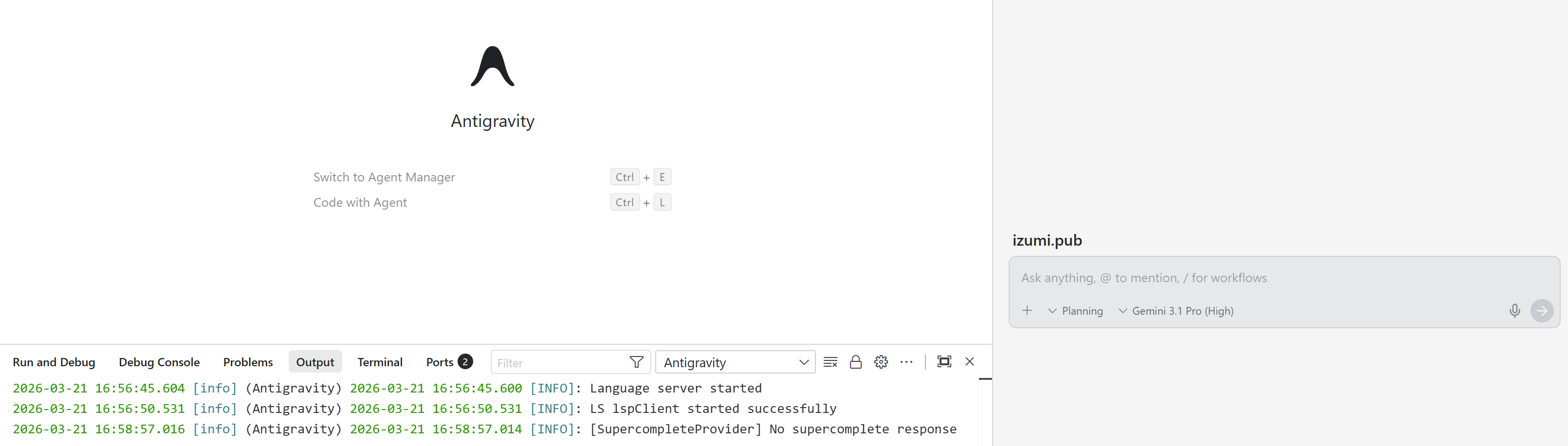
success

Finally, note that after the IDE updates, the entire Server directory path might change, and you will need to repeat the above steps. Alternatively, you could ask the AI to write a one-click setup script. Since I only use this temporarily, I won’t do any further processing.

转载请保留本文转载地址,著作权归作者所有