Warning: the steps below are only based on my own successful experience. If you are not comfortable with system-level changes, think carefully before trying this. A mistake may lead to data loss or even make Windows unbootable. Back up your data first.
Test Environment
I tested this successfully on two different machines, both signed in with an online account.
- Windows 11 Pro 22H2 22621.1413
- Windows 11 Pro Insider Preview 22H2 25309.1000
Steps
Before you begin: the process requires a reboot, so it is best to open this guide on another device first.
1. Modify the Registry
-
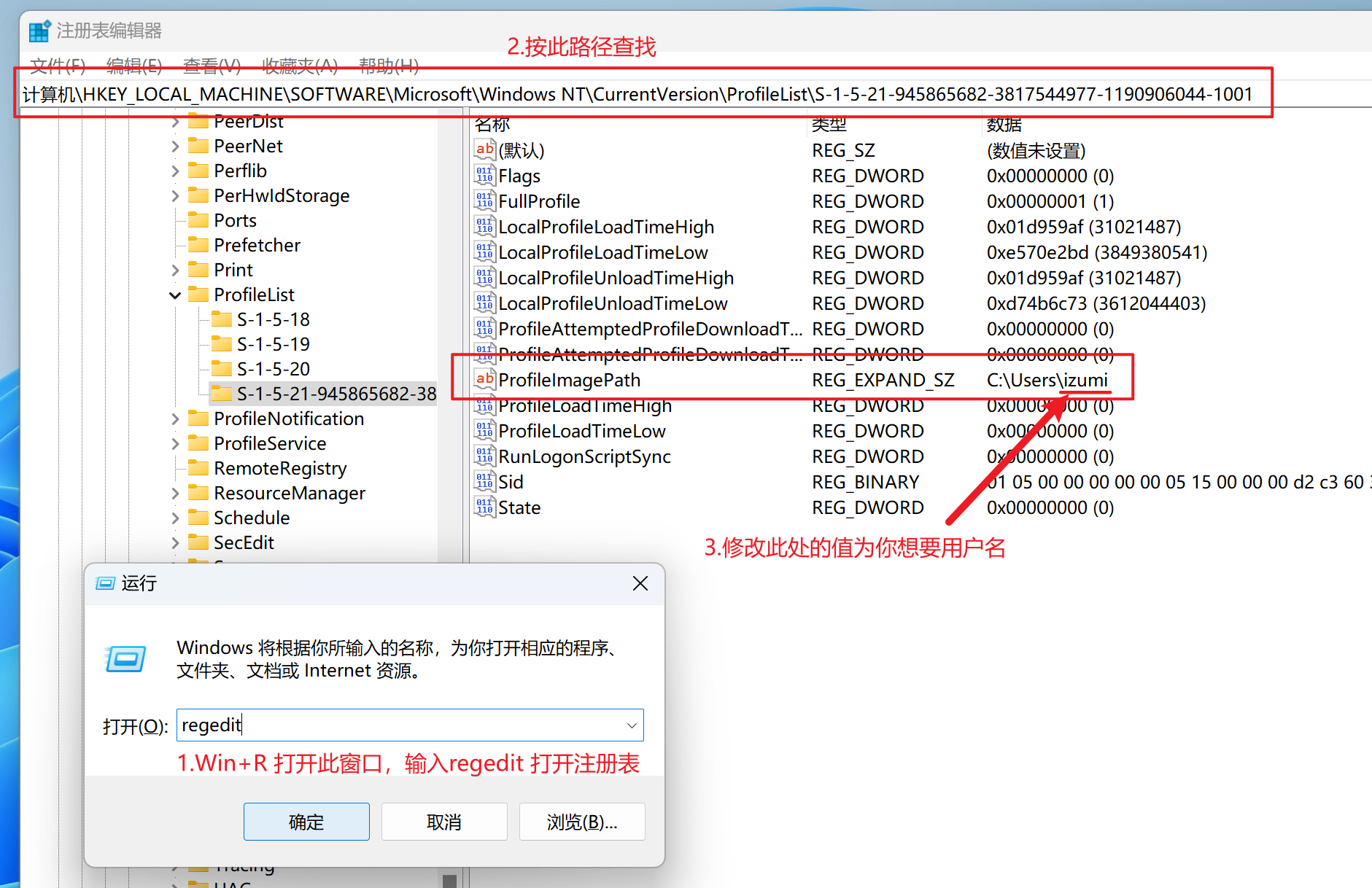
Press
Win + R, then runregedit. -
Navigate to:
HKEY_LOCAL_MACHINE\SOFTWARE\Microsoft\Windows NT\CurrentVersion\ProfileList -
Double-click
ProfileImagePathand change it to your new username.
2. Reboot and Enter the Temporary Profile
Restart the computer and sign in with your password. Windows will take quite a while spinning because it cannot find your original profile path. Be patient.
After you finally get into the system, Windows will ask whether you want to sign out. Close that prompt and continue with the next step.

3. Rename the Folder
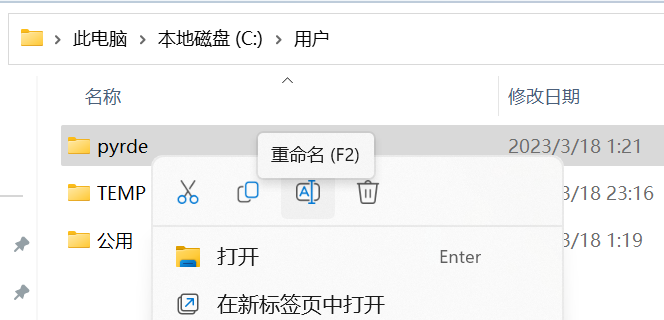
Go to the path shown below and rename the folder to your new username.
If you see a folder is in use warning:
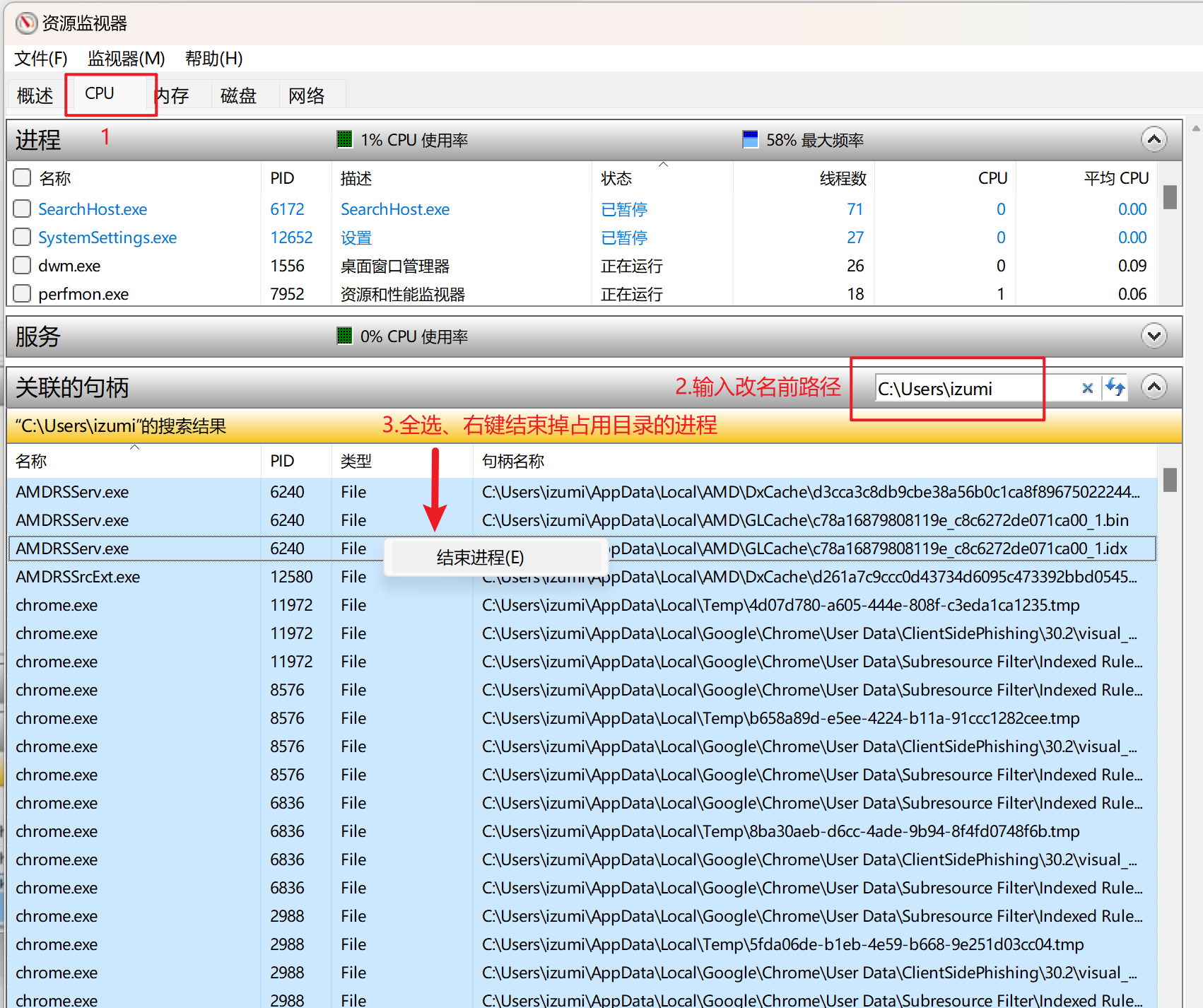
Press Win + S, search for Resource Monitor, and open it. Go to the CPU tab, then enter C:\Users\izumi in the search box on the right side of Associated Handles. Replace that path with your own old folder path.
You will then see which processes are still using the folder. Select them all, right-click, choose End Process, and try renaming the folder again.
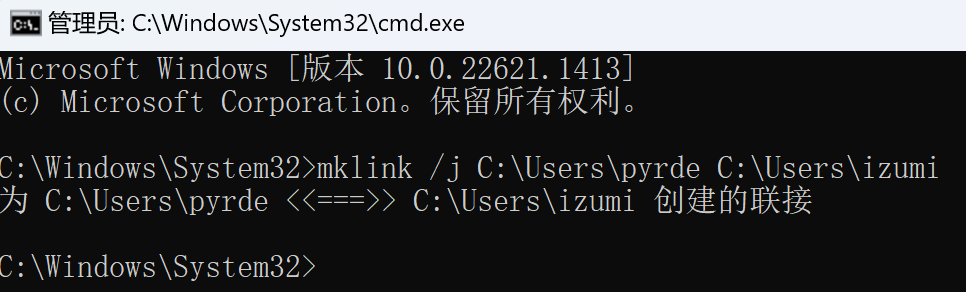
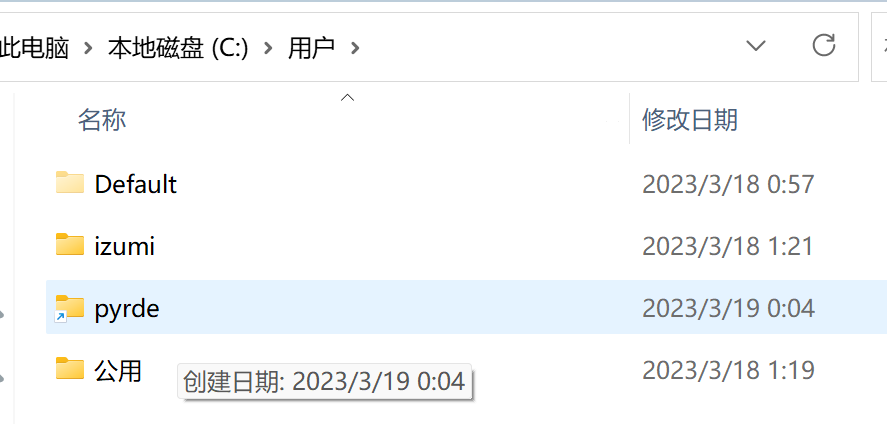
4. Create a Link Between the Old and New Folders
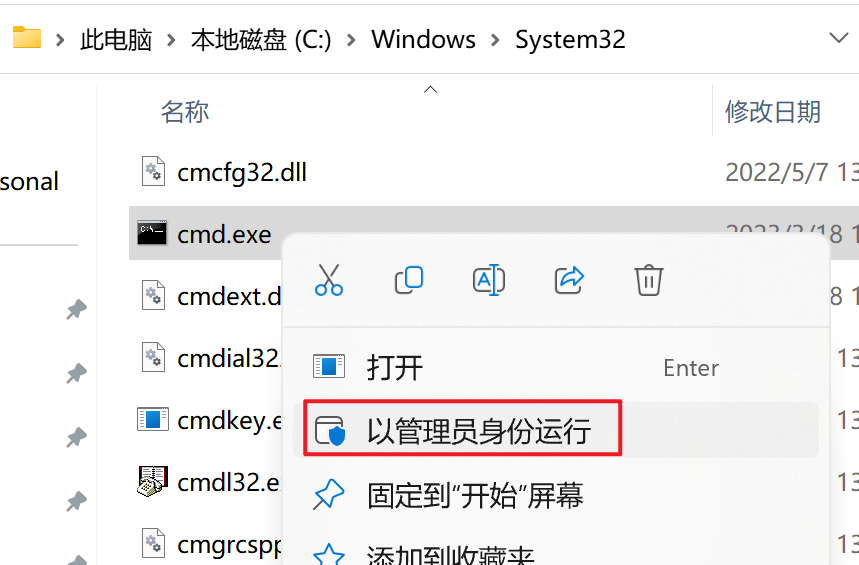
- Follow the path shown in the screenshot and run
cmd.exeas Administrator.
- Run:
mklink /j C:\Users\pyrde C:\Users\izumi
The first path is your old username, and the second path is your new username.
5. Change the Username
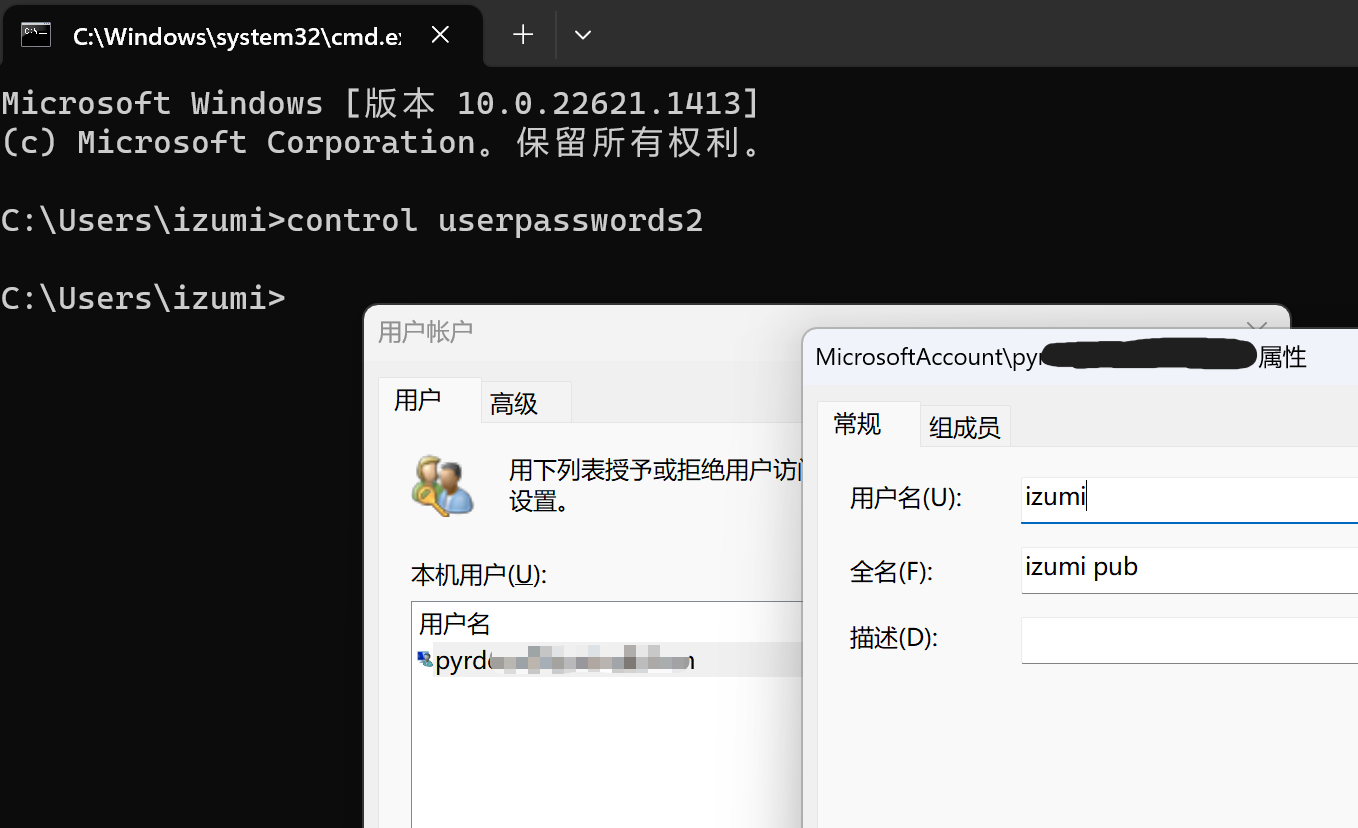
Run control userpasswords2, open the current user’s properties, change the username, save it, and reboot the computer.
At that point, the rename is basically complete.
Notes
1. A Minor Imperfection
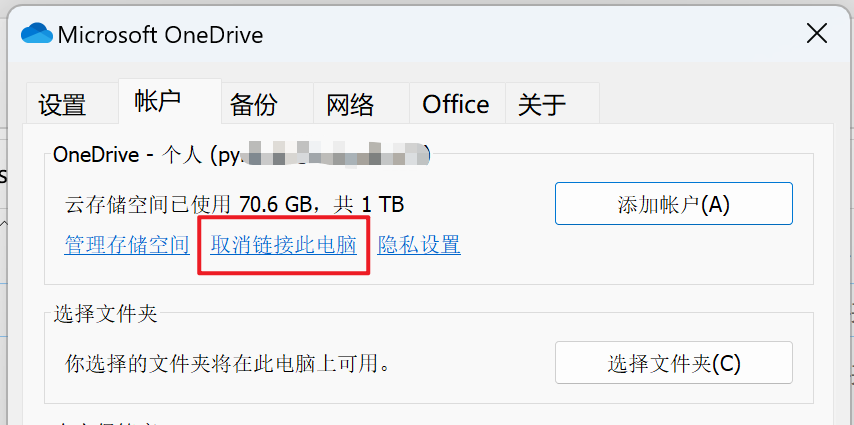
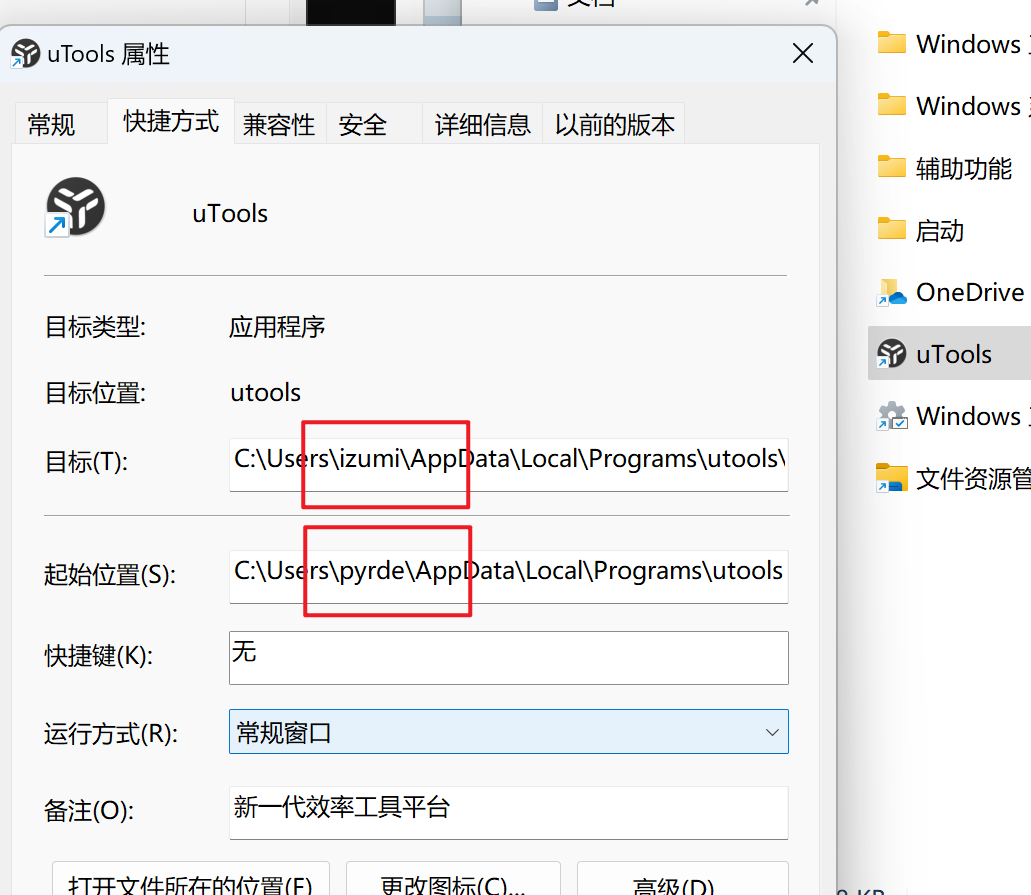
Because we created a junction from the old path to the new one, programs that still access the old location can continue working. That also means the setup is not completely clean. For example, OneDrive may still show the old path, even though it continues to work because of the junction created in step 4.
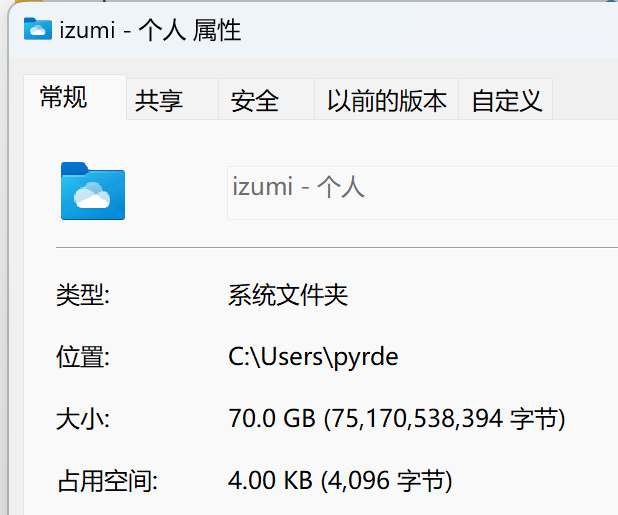
Of course, you can unlink OneDrive in its settings and then add the account again. That lets you point it to the new username path.

So in theory, you could skip step 4 and only fix paths or environment variables manually if a specific application stops working.
2. One Method I Did Not Dare to Try
Some guides online recommend doing a bulk search-and-replace in the registry to replace the old username with the new one everywhere. I did not try that method myself, but if you are interested, you can look into it on your own.